# How to configure Ring Groups
A Ring Group (also known as a hunt group) routes incoming calls to a predefined group of Extensions or a Call Flow feature account. The Ring Group can be set up in stages (up to 3 Stages and a Final Destination). In contrast to a Call Queue, the call is not queued. If the extensions In Stage 1 are busy or the conditions are not met, the call moves to stage 2. The call moves through the stages until the final stage (Destination) which is often set up as a Voicemail greeting or a direction to another number.
Ring Groups use the account range (200, 201 .......) each account defines a unique ring group, allowing you to set up multiple ring groups.
Ring Group accounts can be added to your Business Phone System by your service provider or by you as the customer.
The following instructions detail how to add a new Ring Group or configure an existing Ring Group.
# Adding a new Ring Group
Select Ring Groups from the Call Flow Features drop-down list.
Any existing Ring Groups will be displayed in Blue.
If you would like to add a new Ring Group, Click the ADD button.
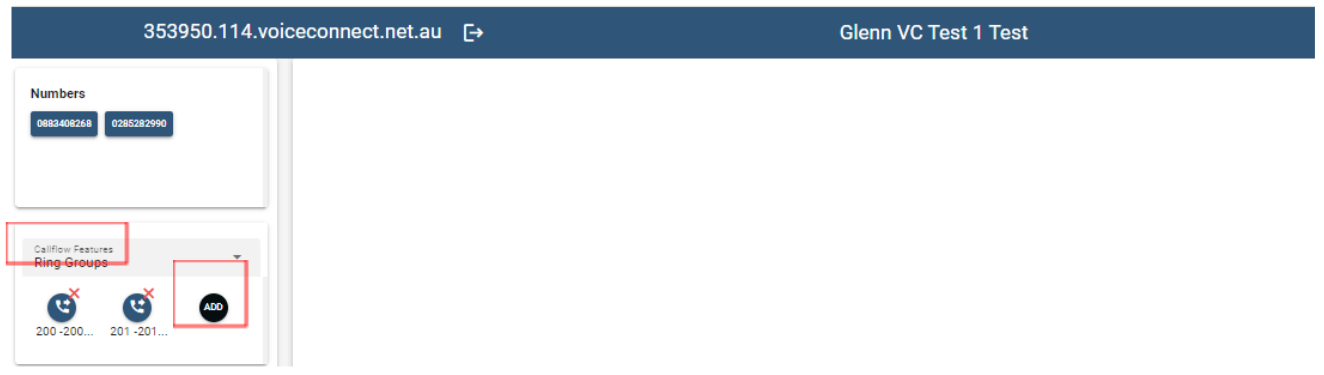
This will take you to the Create Ring Group window.
Enter the Name of your Ring Group in the Display Name field. Use a meaningful name to assist in easily identifying your Ring Groups.
Click the Create button.

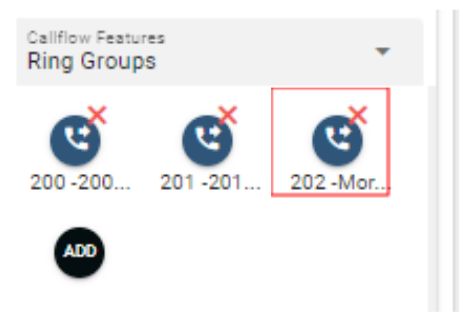
The new Ring Group will appear as the last account in your Ring Group account list.
# Configuring a Ring Group
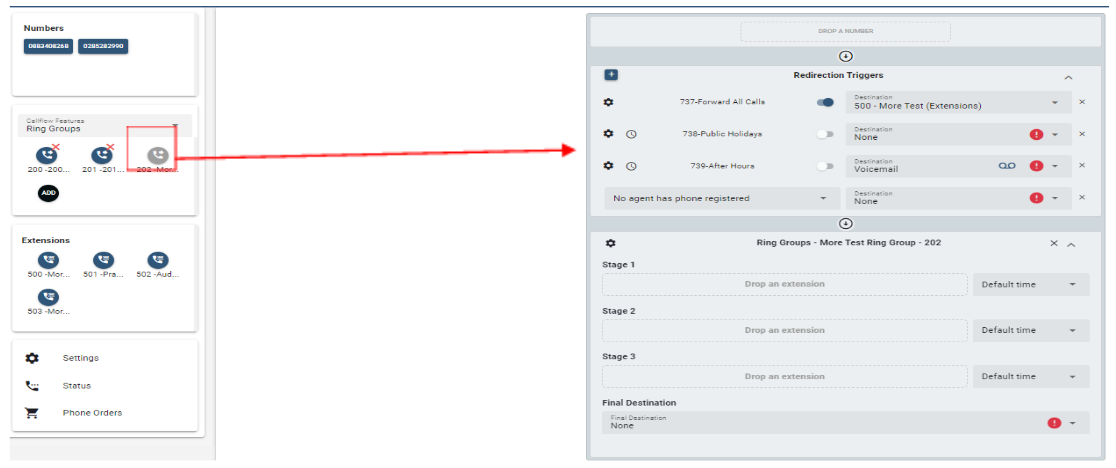
- Select the Ring Group and drag it onto the blank canvas (see drag and drop instructions).
- If you would like to assign a phone number to the Ring Group, choose an available Number (coloured blue) and drag it from Numbers to the "Drop a Number" box.
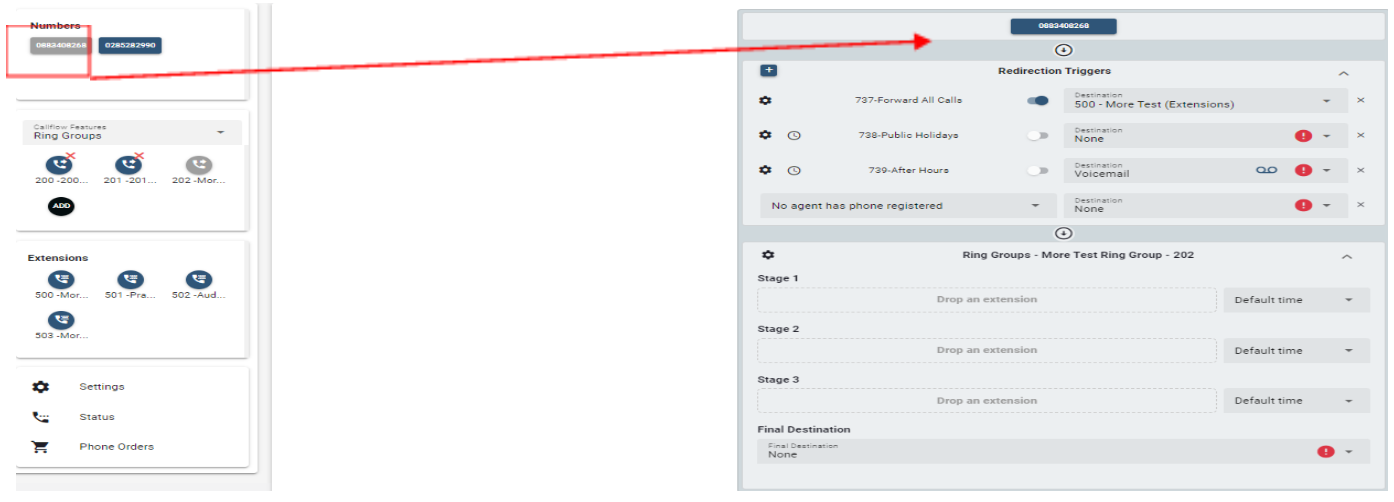
The Number will appear in the "Drop a Number" box.
Configure the Redirection Triggers.
Redirection Triggers take priority In the Ring Group.
Any enabled Redirection Trigger will be actioned before the call is routed to the Ring Group. The following buttons show whether a Redirection Trigger is enabled or disabled.
 Redirection Trigger enabled.
 Redirection Trigger disabled.
The default Redirection Triggers in order of priority are:
Forward All Calls.
Public Holidays.
After Hours.
You can use Drag and Drop to change the order of Redirection Triggers.
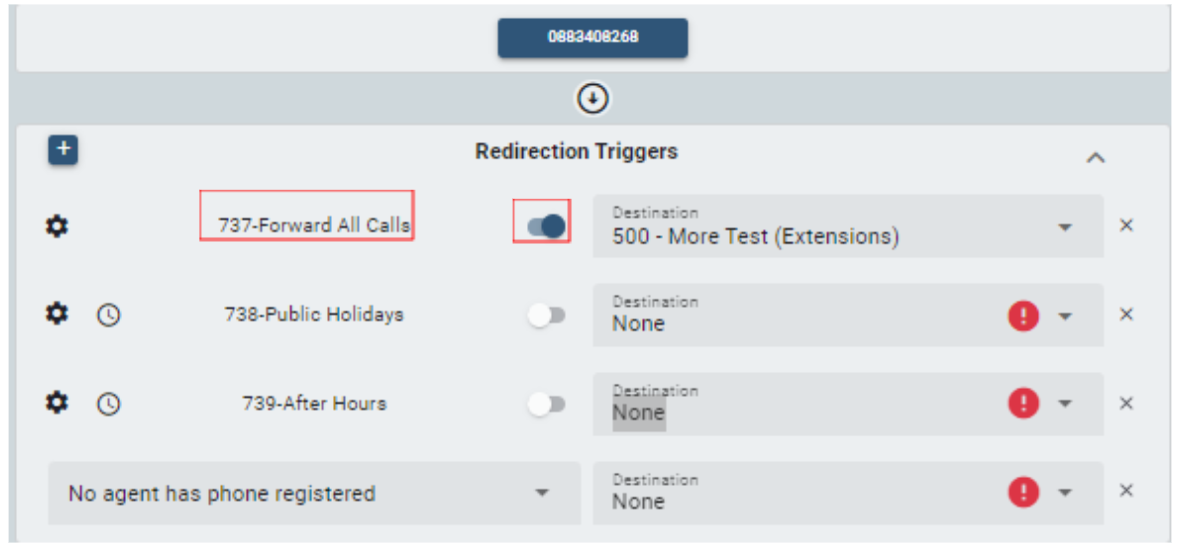
In the example above only the Forward All Calls Redirection Trigger is enabled.
737-Forward All Calls is the name of the Redirection Trigger account.
- shows that the Redirection Trigger is
enabled.
Destination is a drop-down box listing the redirection Destination options (in this example to Extension 500)
Click on the Down Arrow
 to list the Destination Options.
If the Destination is None the
 symbol will appear.
Click on the
 button to remove the Redirection
Trigger from the Ring Group.
button to remove the Redirection
Trigger from the Ring Group.For more information on Redirection Triggers please refer to How to Configure Redirection Triggers.
After the Redirection Triggers are configured, you can configure the Ring Group Basic Settings
Click on the
 icon to configure the Ring Group Basic Settings.
An alternate method to update the Ring Group is to Double Click on the Ring Group account from the list of Ring Group accounts.
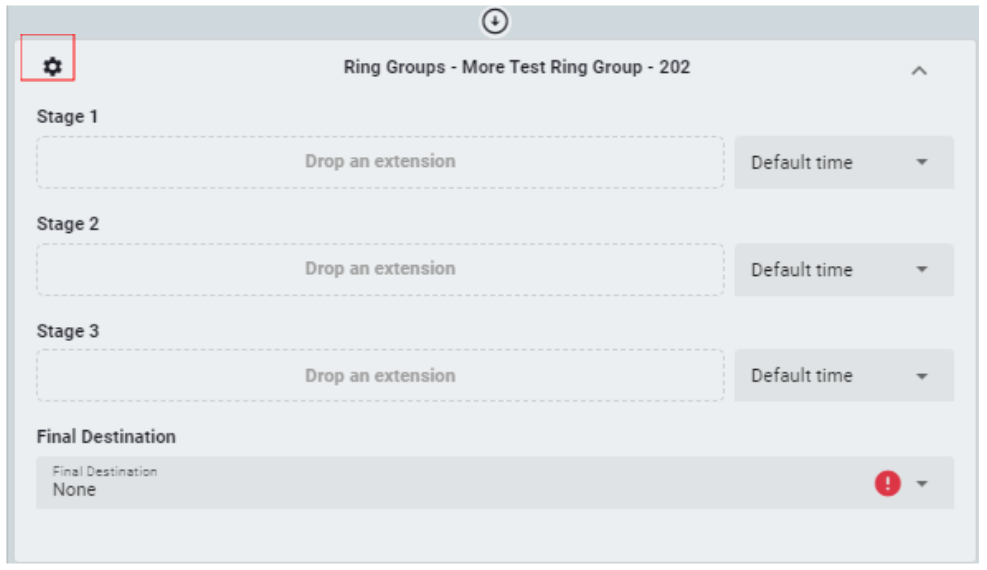
Edit the Ring Group Basic Settings.

Display Name: the Ring Group name. Use a meaningful name to assist in easily identifying your Ring Groups.
Music on Hold Source: Drop-down list of available music or pre-recorded announcements.
Send Daily CDR reports: The list of all the daily calls into the Ring Group. The report is sent nightly at midnight to the email address listed in this field.
Click the Save button on the top right of the page.
Configure the Ring Group Stages and Final Destination.
- Drag the Agents extensions to the Drop an Extension field.
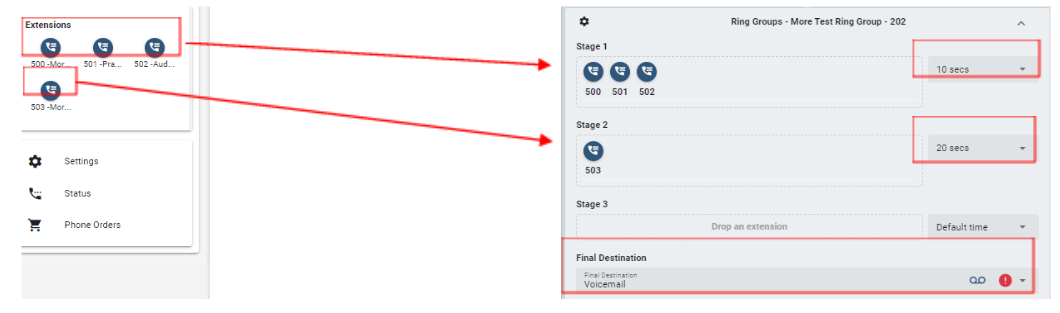
Stage 1: From the drop-down list select how long the call should be waiting in Stage 1 before it progresses to the next stage or the final destination.
Stage 2 Total Time: From the drop-down list select how long the call should be waiting in Stage 2 before it progresses to the next stage or the final destination.
Final Destination: From the drop-down list select the final destination.